NEW HOT

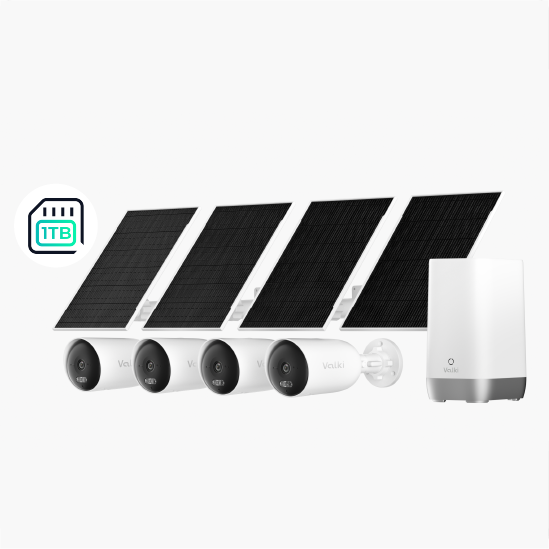
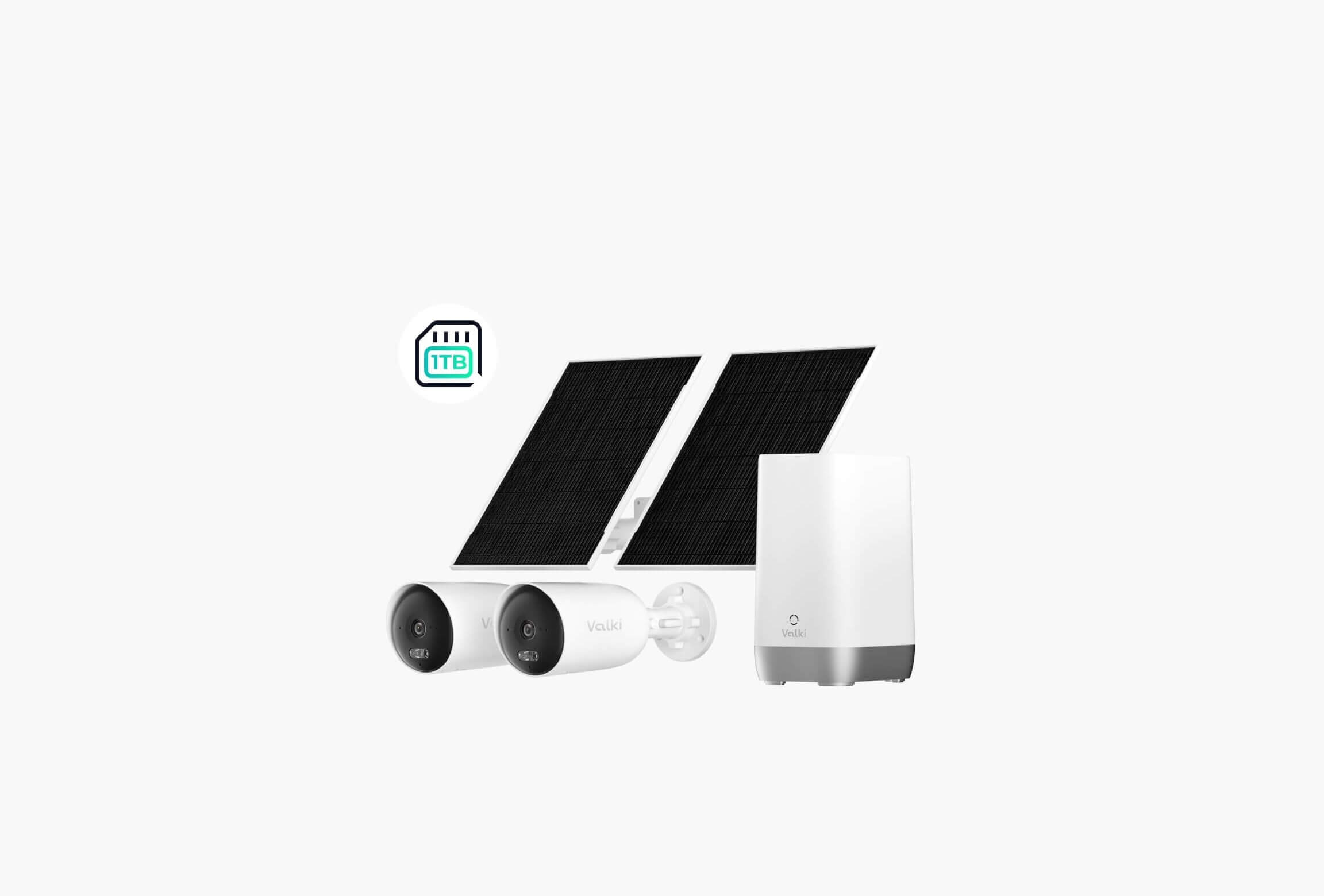
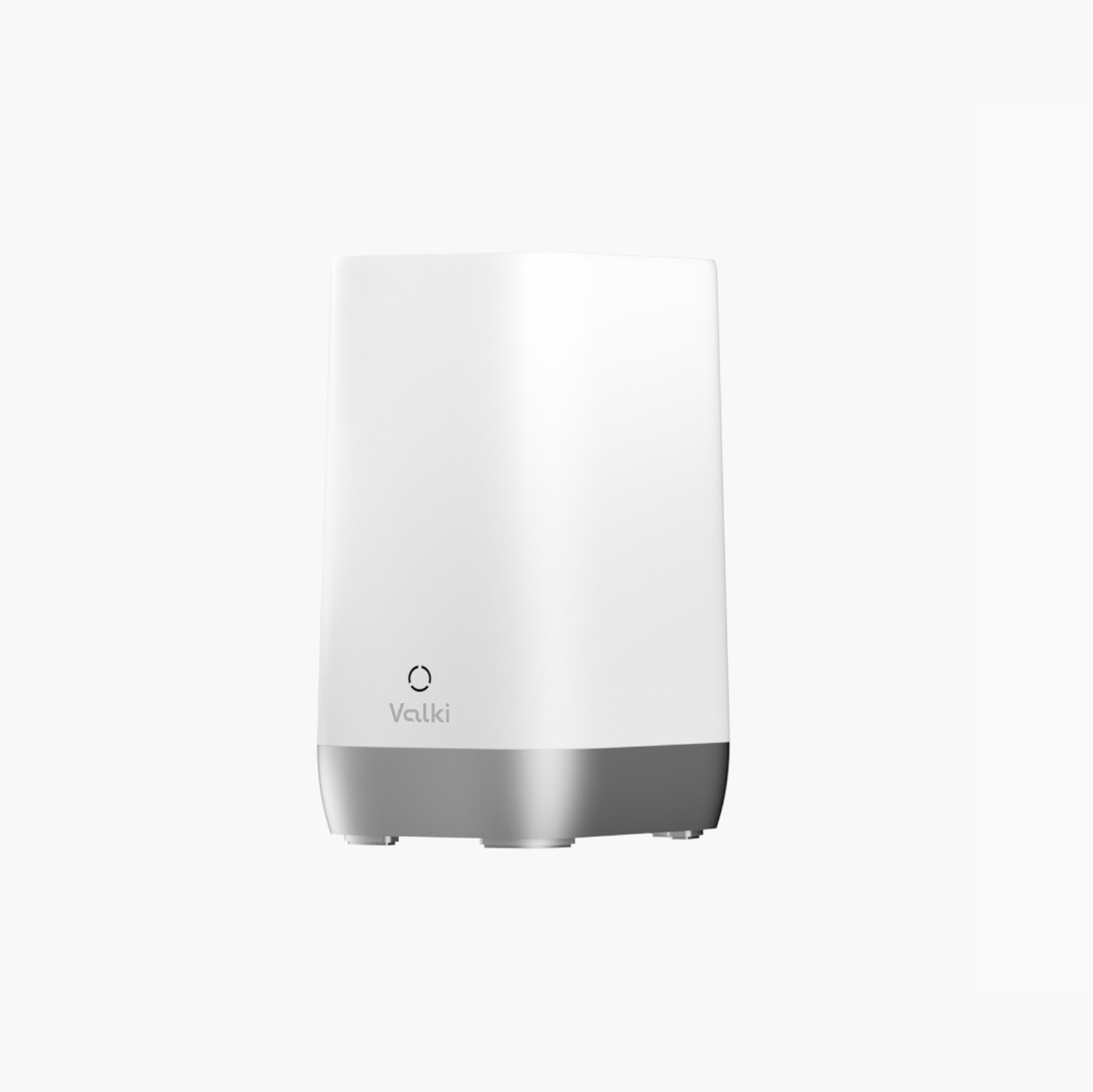
AI Station S1

local safe storage icon
AI Video Search icon
keyword search icon
wifi 6 icon
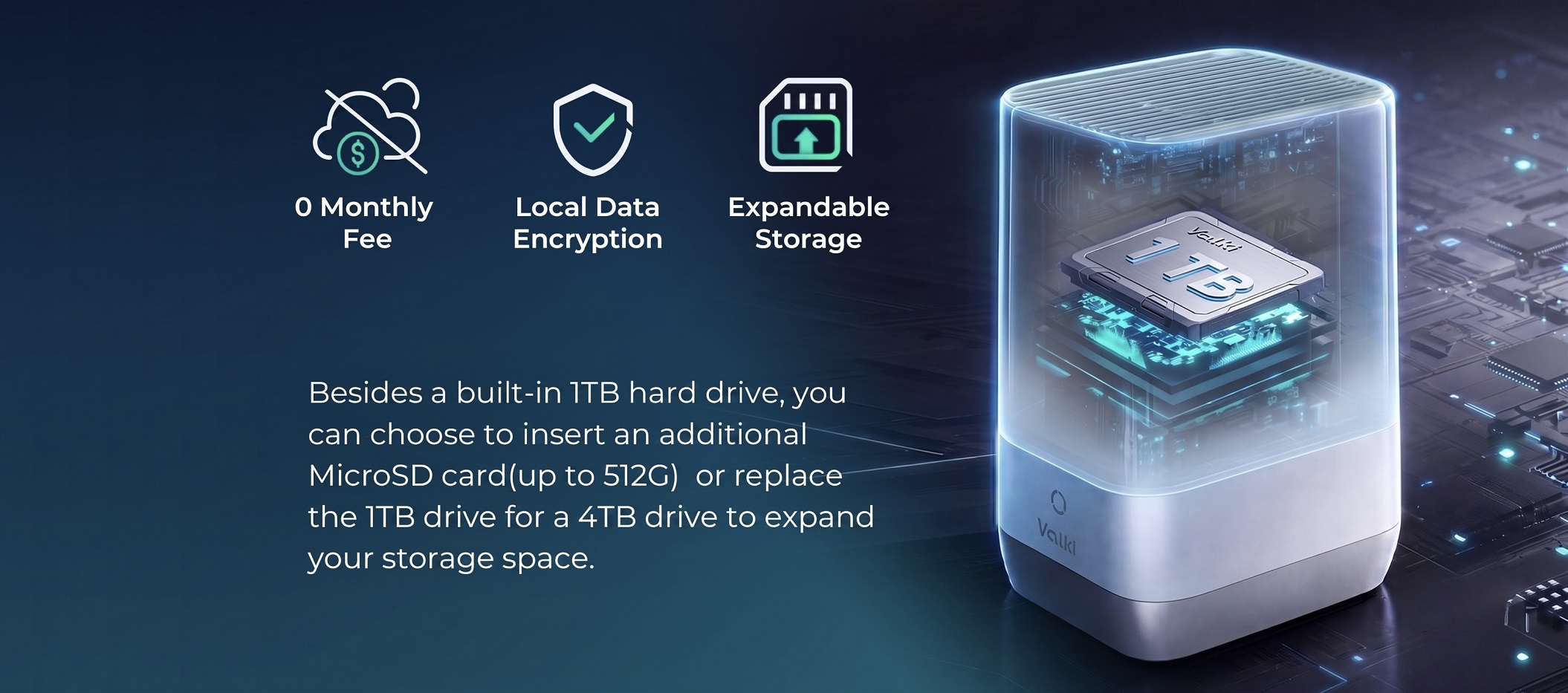
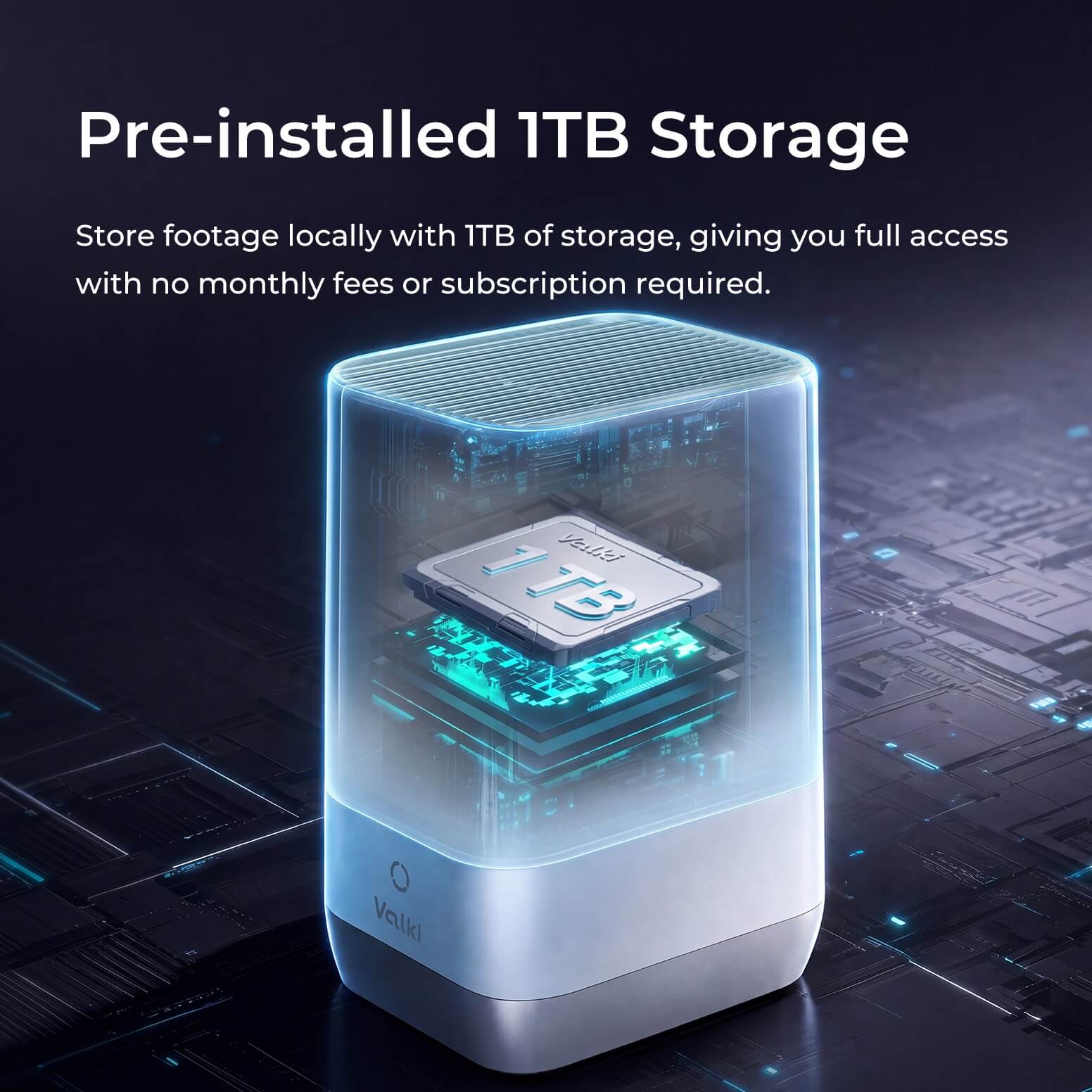
  • Local Safe Storage: On-device storage with flexible expansion options
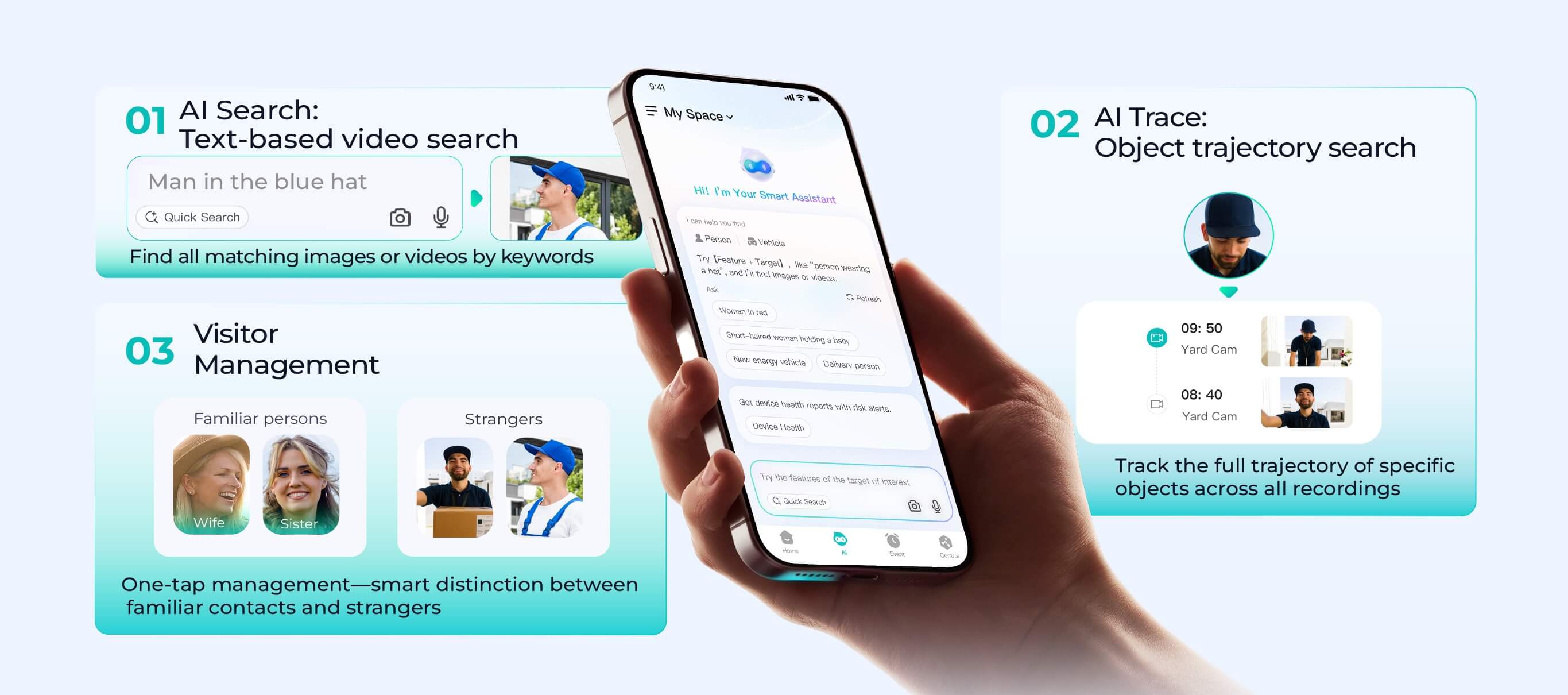
  • AI Search: Find key objects instantly using simple text descriptions
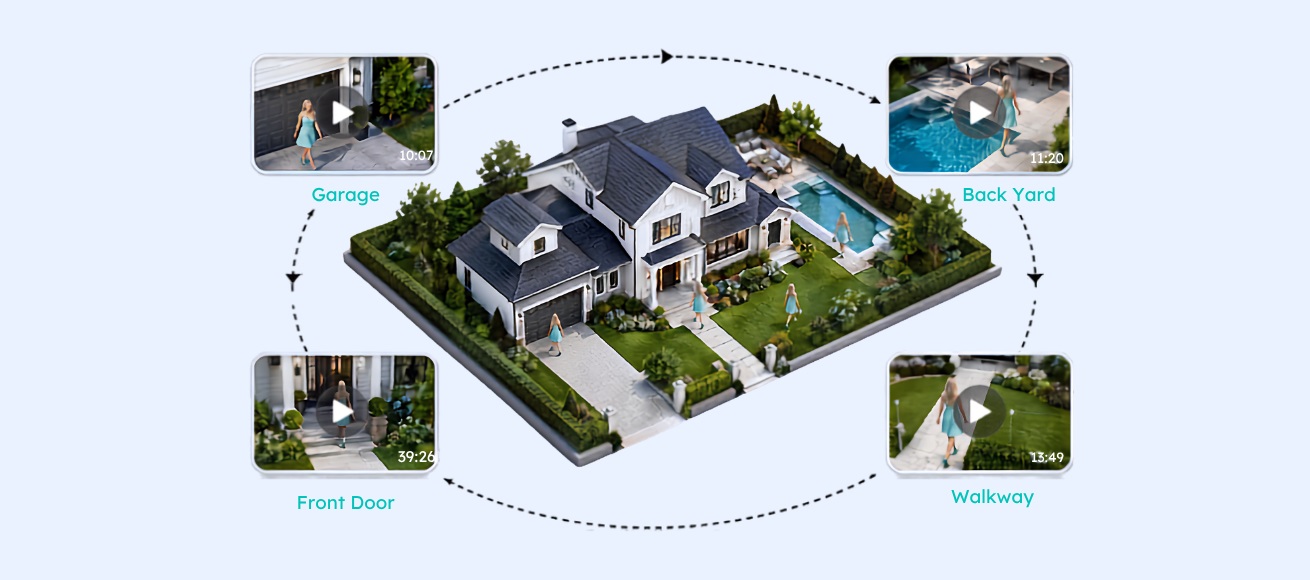
  • AI Trace: Track an object’s path with a single tap
  • Visitor Management: Know when someone familiar—or not—approaches your door

We've Got Your Back

Default Image Warranty Coverage
Default Image Free Shipping
Default Image Easy Returns
Default Image 24/7 Online Support

Local Storage

Safe Local Storage, Your Control

Default Image

AI Station

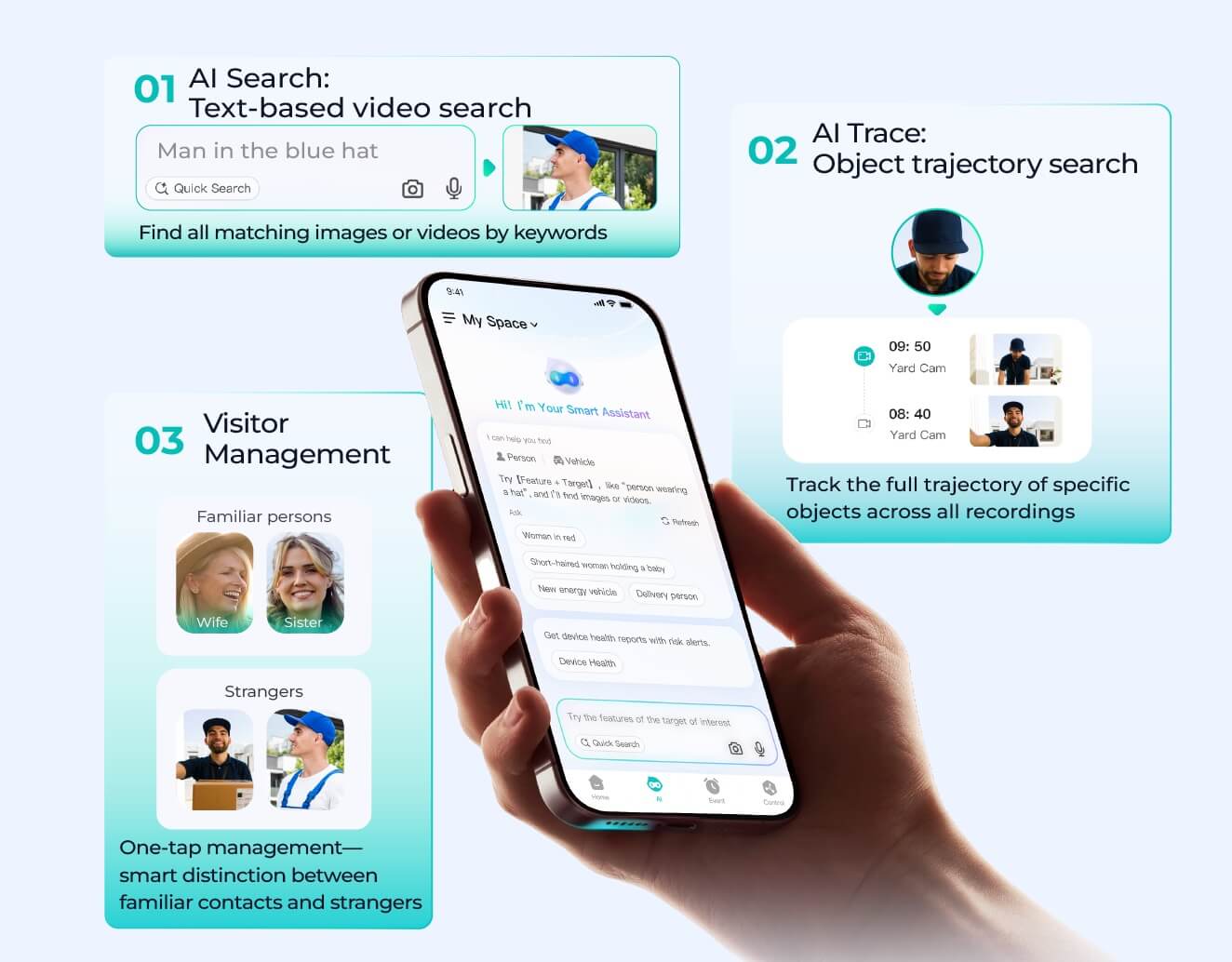
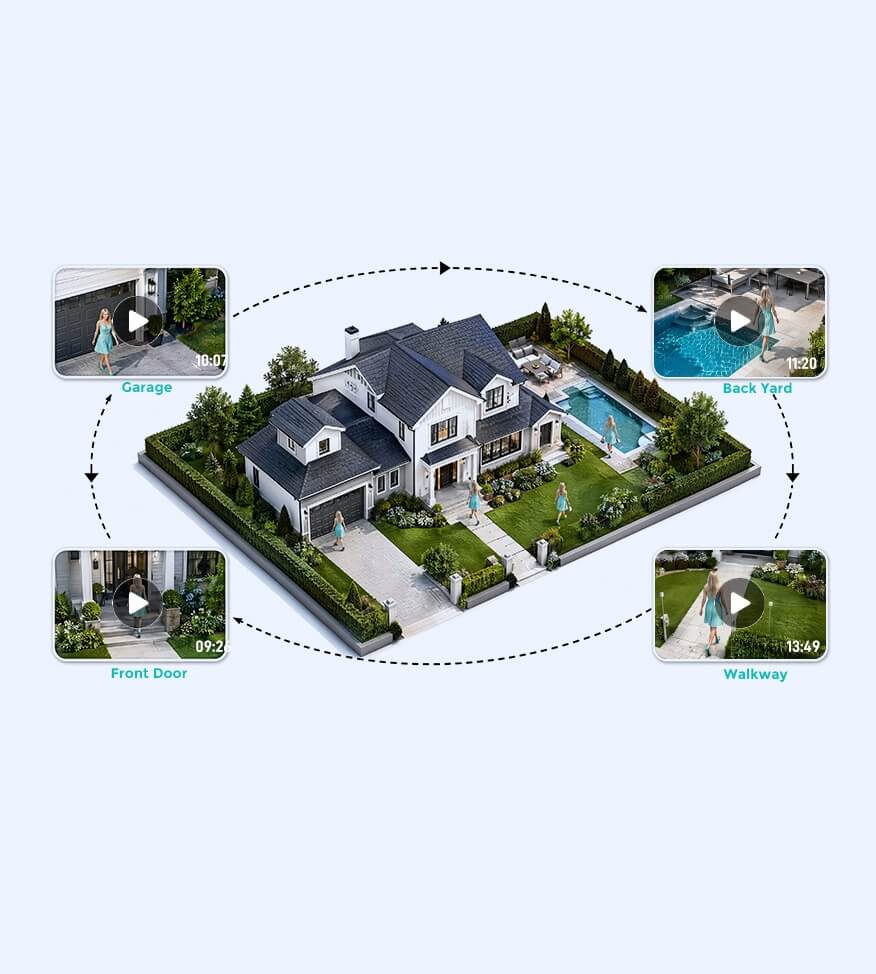
From keyword search to trajectory tracking and visitor management, it makes security easier and faster.
  • AI Search: Text-based video search
  • AI Trace: Object trajectory search
  • Visitor Management: Distinguish familiar faces from strangers
AI Station to make video search easier and faster AI Station to make video search easier and faster

AI Station Compatibility

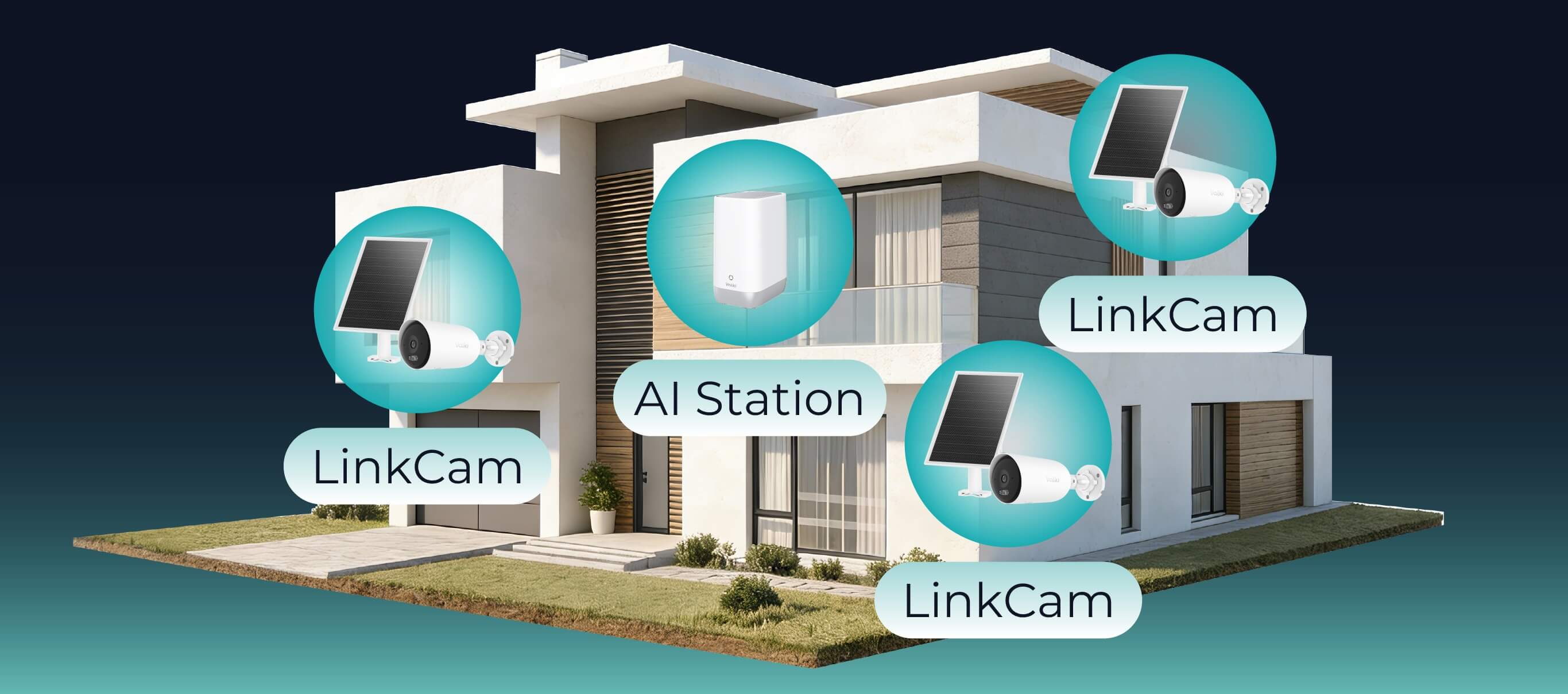
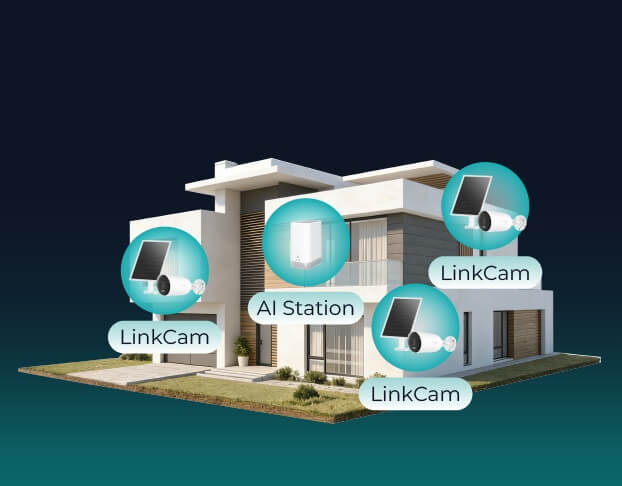
Seamlessly connects with various Valki products, ensuring smooth integration and centralized control for your devices.
AI Station connects with Valki products to ensure smooth integration and centralized control. AI Station connects with Valki products to ensure smooth integration and centralized control.

Valki App

Everything You Need, in One App

The App brings all your devices together, delivering real-time visibility, smart alerts, and seamless control—so you’re always connected and effortlessly in charge, anytime, anywhere.

Download Now
Default Image

Frequently Asked Questions

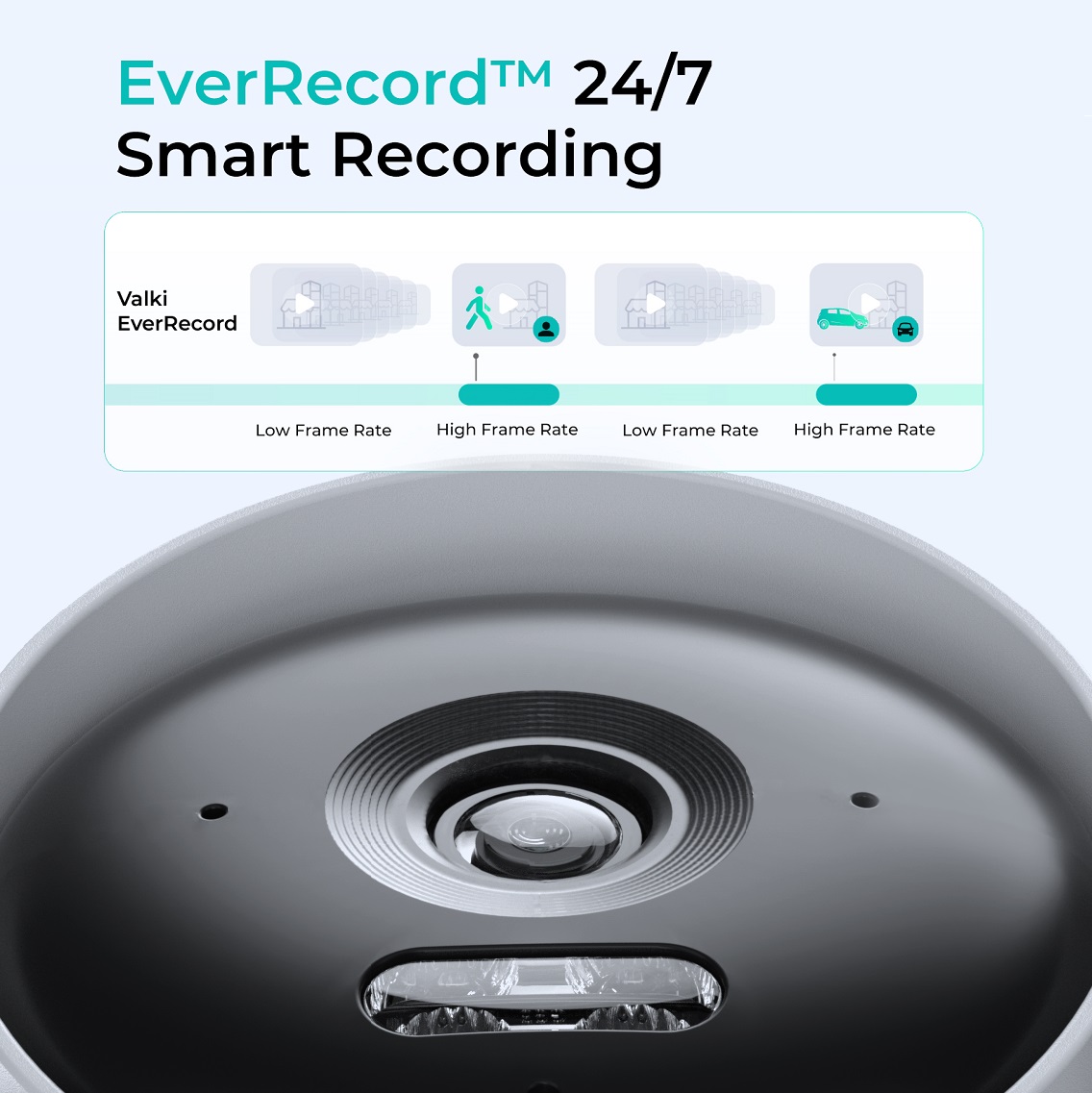
What is 24/7 EverRecord?

For solar-powered cameras, 24/7 EverRecord records at 15 fps during events and switches to a reduced frame rate (e.g., one frame every 2 seconds, adjustable in the app) during non-event periods to enable continuous 24/7 recording.

What's the difference between Smart Night Vision mode and Black & White Night Vision mode?

Smart Night Vision records events in color and non-event footage in black and white, automatically adjusting the fill light based on lighting conditions.  Black & White Night Vision records all footage in black and white at all times.

Can the solar panel be replaced separately?

Yes.

Can the battery be replaced separately?

No.

Do I need to charge the camera before the first use?

It comes fully charged, but the battery can drop a bit while in shipping or storage, so we suggest charging it once before setup.

What is the Type-C port used for? Can it be used to power the Station?

The Type-C port is only used for storage expansion. It cannot be used to charge other devices or to power the Station.

Can the camera work directly with the Valki app, or does it require an AI Station?

LinkCam cameras require an AI Station and do not support direct app-only operation.

Is AI Station S1 compatible with other Valki products?

AI Station S1 is compatible with all current LinkCam Products.

How efficient is the solar panel charging?

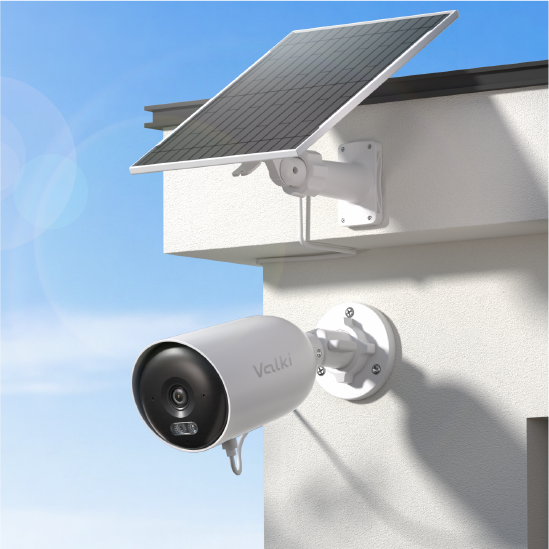
With the 8W solar panel, about 4 hours of charging in ample sunlight can power the camera for up to 7 days (based on up to 50 motion alerts and 10 minutes of live view per day).

What kind of hard drive can I use to expand the storage of AI Station?

The AI Station supports 2.5-inch HDDs or SSDs (up to 4TB), microSD cards over 64GB (up to 1TB), and external drives (up to 2TB) via the Type-C port with a 5W power limit.

Can other home devices connect to the Station’s Wi-Fi network?

No. The Station provides a dedicated Wi-Fi 6 network exclusively for Valki cameras and does not allow other home devices to connect.

What can affect the wireless connection between the camera and the Station?

Wi-Fi performance may vary depending on distance, wall materials, and surrounding wireless conditions.

How do I reset the Station?

Use the reset pin to reset the Station. After the reset, the Station will return to factory settings and all data, including the face database, will be erased.

Why is the live view lagging or not loading?

Please check whether your network connection is stable. If the station is connected wirelessly, try moving it closer to the router or switching to a wired connection. Also, Also, make sure the camera has a good connection to the station.

Why can’t I view the recordings?

Please check whether your network connection is stable. If the station is connected wirelessly, try moving it closer to the router or switching to a wired connection. Also, make sure the storage device is properly installed and functioning normally. If needed, follow the in-app instructions to format the storage.

Specifications

Video and Audio
Decoding
Network
Auxiliary Interface
General
Wireless Parameter(Link To Internet)
Wireless Parameter(Link To IPC)

Download

Quick Start Guide

LinkCam Kit

Warranty Coverage

Reliable protection backed by long-term warranty coverage.

Free Shipping

Enjoy free delivery straight to your door.

Easy Returns

Hassle-free returns within the return period for peace of mind.

24/7 Support

Professional and reliable, anytime you need it.

Cart

loading