Valki App

Default Image
Valki App provides insight into what matters most—clear, current, and always under control.

Everything, in One App

Insight into what matters most—clear, current, and always under control.
Default Image
Valki App
Everything You Need, in One App
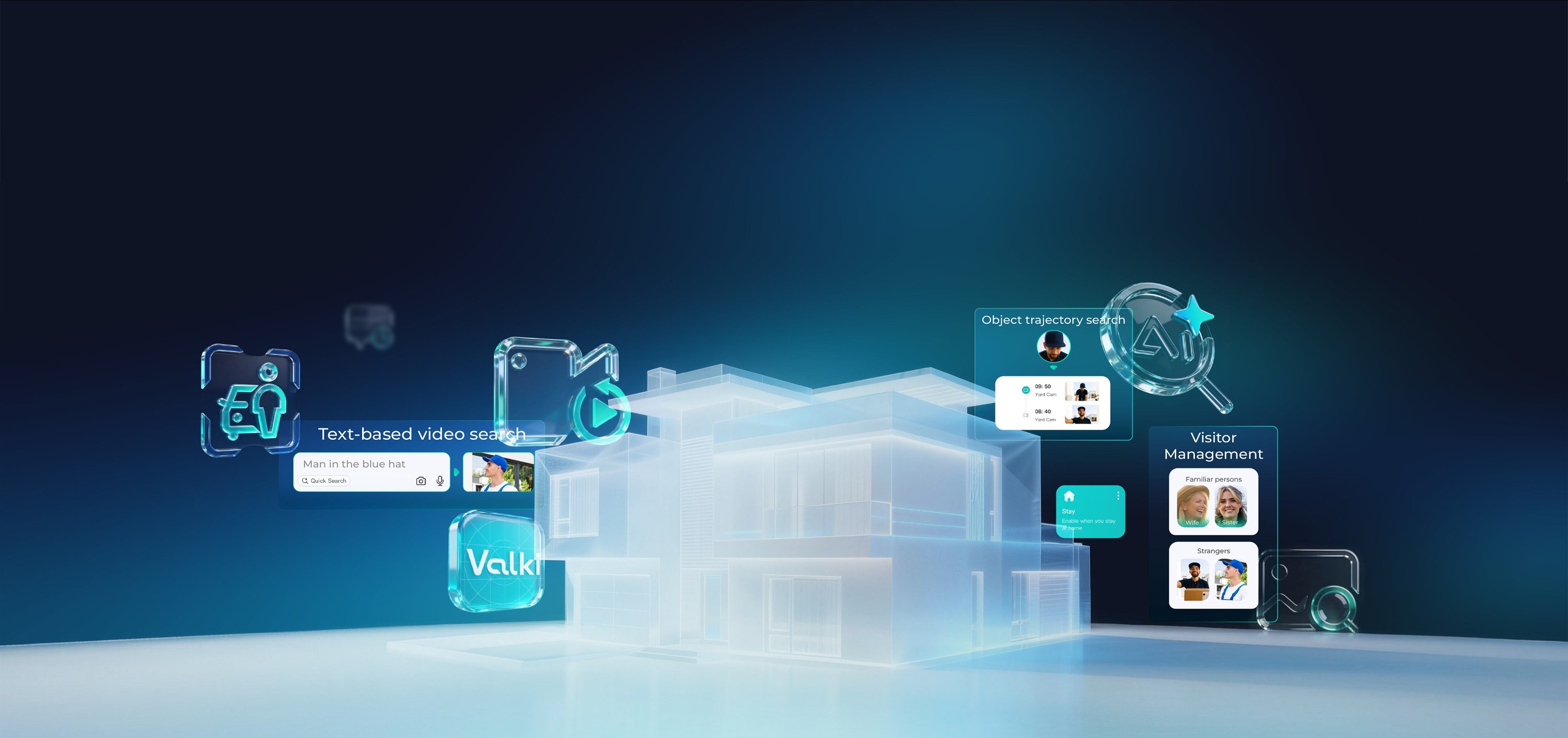
The App brings all your devices together, delivering real-time visibility,smart alerts, and seamless control-so you're always connected andeffortlessly in charge, anytime, anywhere.

Smart Video Retrieval – No More Endless Scrolling

Default Image
Default Image
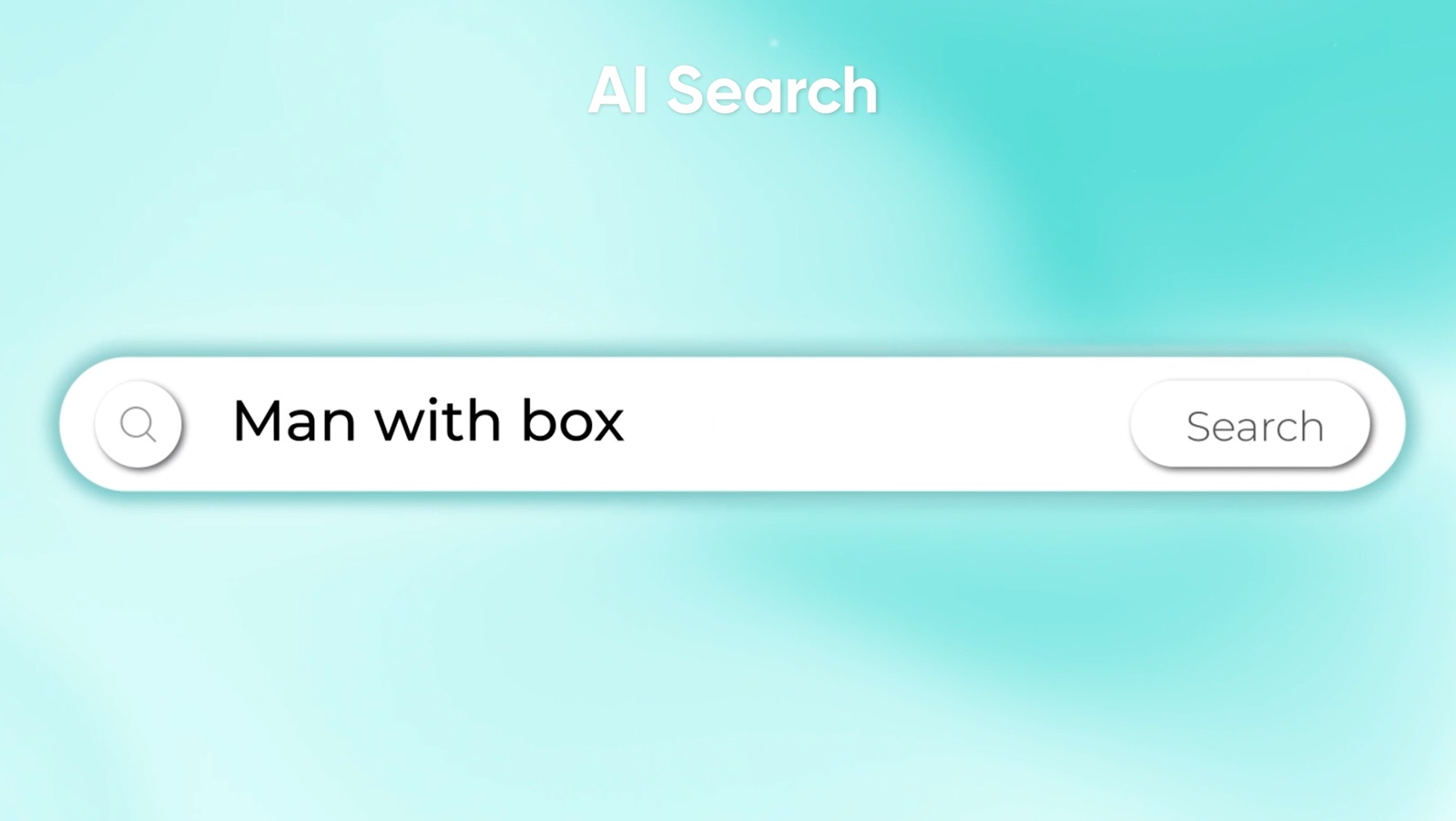
AI search: Type key words to quickly locate objects.
Default Image
Default Image
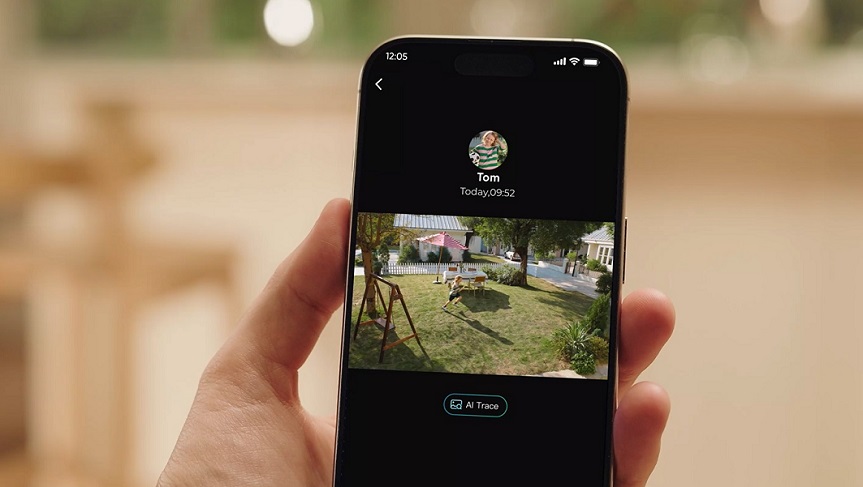
AI trace: Upload a photo or select an object from playback to trace movements across all recordings.
Default Image
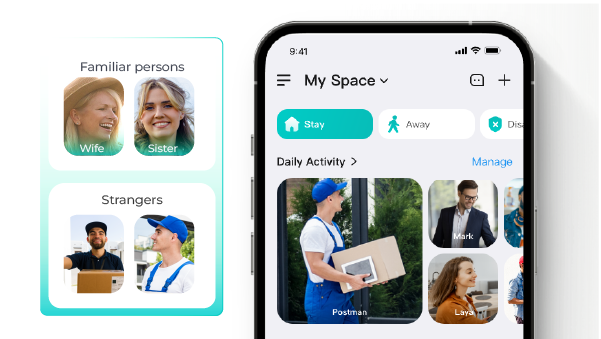
Visitor Management – See Who’s Around
Valki Al recognizes faces, tracks anyone across cameras, and gives adaily video roundup-family, friends or strangers, all in one place.
valki app customizes detection and set up alerts your way
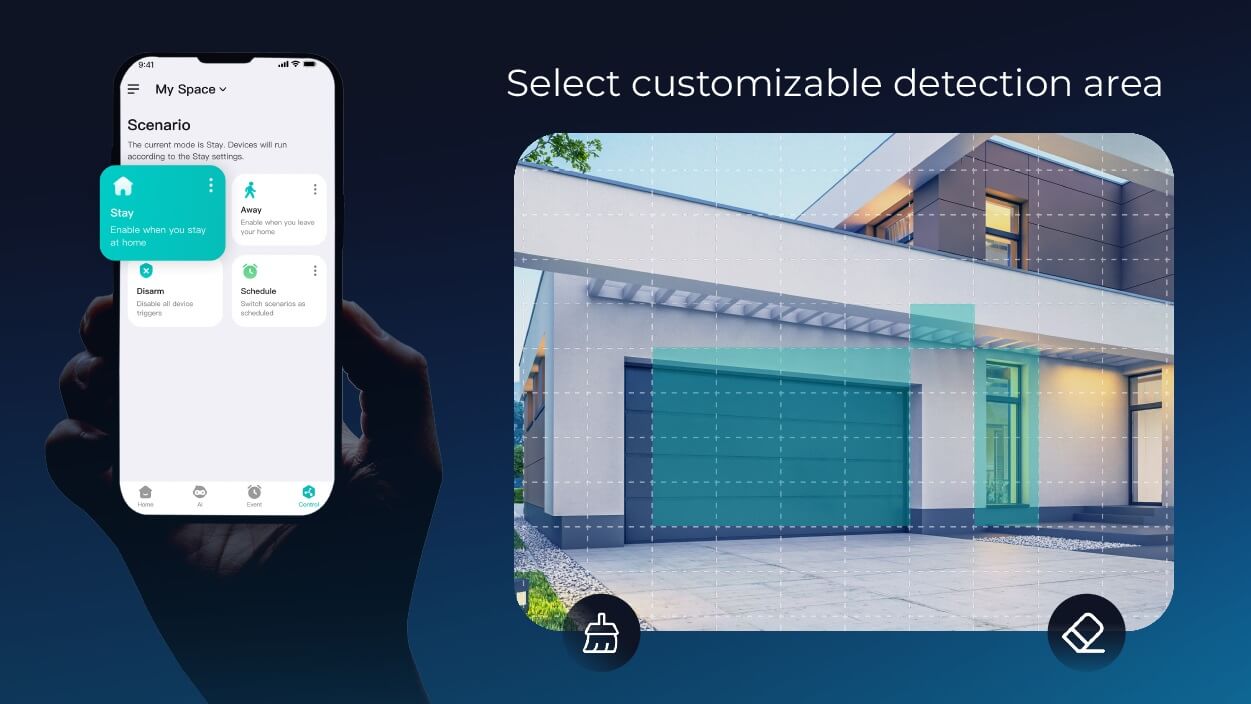
Custom Detection – Alerts Your Way
Select customizable detection area, so the camera focuses only on the areas that matter most. Switch Home/Away/Disarm modes with one tap.
valki app provide smooth video experience and effortless browsing
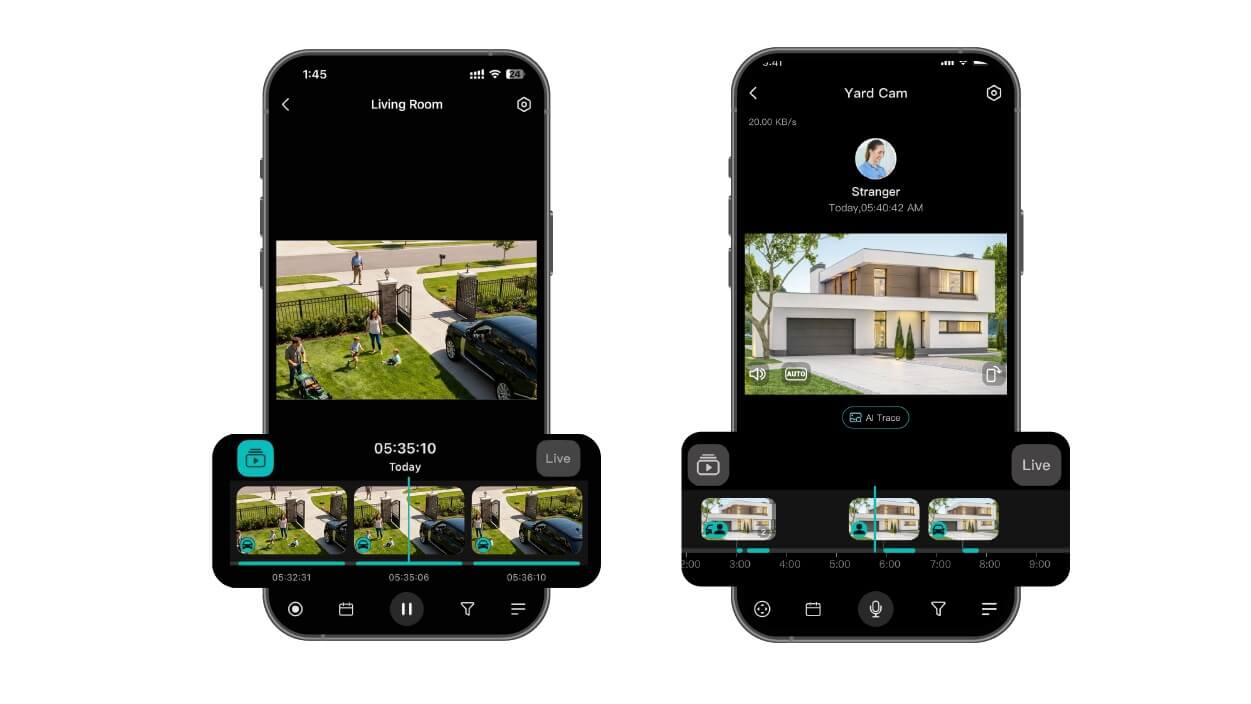
Smooth Video Experience – Effortless Browsing
Easily scroll live and recorded videos. Al tags persons and vehicles, fast-forward with gestures, and zoom naturally.
valki app provide always-on smart monitoring
Always-On Smart Monitoring
· Live view updates - Open the app and see instantly. No waiting, no extra steps.
· Event snapshots - Quickly see snapshots through customizable notifications.
· Camera status -View signal, battery, events, and storageissues at a glance, with instant alerts for offline or low-bat-tery status.

Frequently Asked Questions

How do I set up motion detection on my camera?

Follow these steps in the app:

  1. Configure Detection Area: Go to Camera Settings > Intelligent Detection > Detection Area. Rotate your phone to landscape, drag the edges to cover the desired zone, and tap Save.
  2. Select Detection Target: Go to Detection Target and choose:
    • Person Only: Ignores pets/environment (auto-switches to All Motions at night).
    • Vehicle Only: Detects cars/trucks, etc.
    • Person & Vehicle: Detects both, filtering out animals leaves, etc.
  3. Adjust Sensitivity: Go to Sensitivity. Increase for small objects; decrease to ignore pets or leaves.
  4. Enable Notifications: Ensure notifications are allowed in your phone's system settings and toggled ON in the app under Settings > Notification Settings.

How can I share devices or spaces with family members?

Only the Space Owner can initiate sharing via two methods:

  • Share an Entire Space (Ideal for families):
    1. Tap the Space Name > Space Management > Add Member (or via Menu).
    2. Enter the invitee's email.
    3. Permissions: Enable "Manage Device" to make them an Admin (can configure devices). Leave unchecked for Member status (view-only).
  • Share Individual Devices:
    1. Go to Home > Menu Icon > Share Device.
    2. Enter the invitee's email and select specific cameras.
    3. The invitee receives an email/in-app message to accept access.

What systems and devices are supported?

  • iOS: Requires iOS 14.0 or later (Recommended RAM: 2GB+).
  • Android: Requires Android 8.0 or later (Recommended RAM: 4GB+).
  • Tablets: Compatible if running the supported iOS or Android versions listed above.

Why am I not receiving motion detection notifications?

Please check these four areas:

    1. Phone System Permissions: Ensure your phone's Settings > Notifications allows the app to send alerts (iOS: enable Lock Screen/Banners; Android: ensure "Do Not Disturb" is off).
    2. In-App Settings: Open the app, go to Settings > Notification Settings, and ensure the toggle is enabled.
    3. Scenario Settings: Please make sure the notification is enabled when you are in the scenario mode.
    4. Detection Configuration:
      • Make sure intelligent detection is enabled.
      • Verify the Detection Area covers the location of the motion.
      • Check if Sensitivity is set too low.
      • Confirm the Detection Target matches the event (e.g., "Person Only" will not alert for pets or vehicles).

Cart

loading